Customize Your AI Shopping Assistant
Match your AI shopping assistant to your brand with custom colors, styling, and launcher settings.
Customize Your AI Shopping Assistant
Your store has a unique brand identity, and your AI assistant should match it perfectly. Pipecat allows you to fully customize the appearance and behavior of your chat widget so it feels like a native part of your website.
In this guide, we'll walk through all the customization options available in your dashboard.
Accessing Widget Settings
To start customizing:
- Navigate to the Stores section in your dashboard.
- Select your desired store.
- Click on the Settings tab.
Here, you'll find all the controls to tweak how your AI assistant looks and acts.
Appearance & Branding
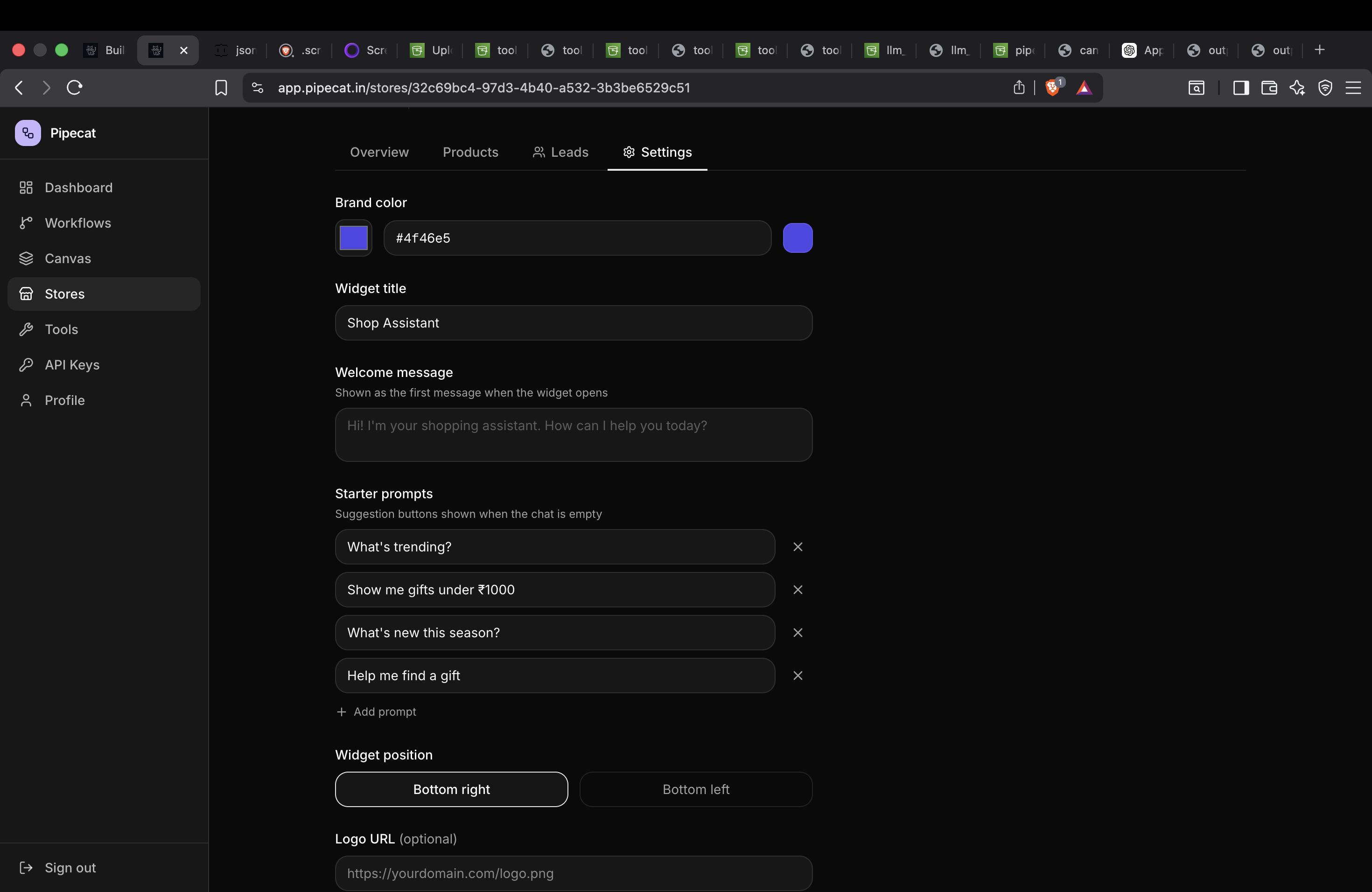
Make the widget your own by tweaking the following fields:
- Brand Color: Change the primary color to match your brand's exact hex code. This color will be applied to the launcher button and chat bubbles.
- Widget Title: Give your assistant a catchy name (e.g., "Style Guru" or "Store Support").
- Welcome Message: Write a friendly greeting that users see when they open the chat.
- Logo URL: Provide a link to your brand's logo. This will replace the default avatar inside the chat header.
- Widget Location: Choose where the launcher button should appear—either the Bottom Left or Bottom Right corner of the screen.
Starter Prompts
Starter prompts are clickable suggestion pills that appear above the chat input before the user types anything. They are a great way to guide users on what they can ask.
You can configure up to 3 starter prompts. Example: "What are your best sellers?", "Do you have summer dresses?", "Track my order."
Lead Collection
One of the most powerful features of the Pipecat widget is its ability to automatically capture leads before or during a conversation.
In the Settings tab, you can turn on Collect Leads.
You can ask for the user's Email and/or Phone Number. For each field, you have two options:
- Optional: The user can skip entering their details and start chatting immediately.
- Required: The user cannot start chatting until they provide the requested information. This is an excellent way to rapidly build your email list or SMS marketing database!
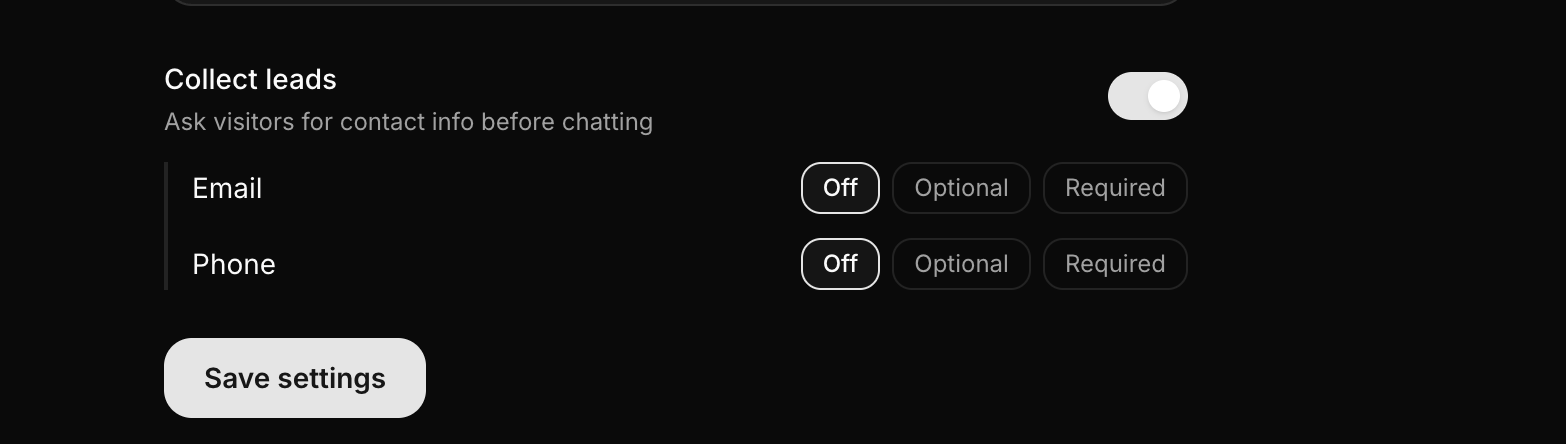
All changes are saved instantly. If your widget is already embedded on your site, simply refresh your store page to see the new changes take effect!
Next Tutorial
Continue learning with: