Add an AI Shopping Assistant to Your Store
Turn your ecomm store into an AI-powered shopping experience with a chat widget that understands your catalog.
Add an AI Shopping Assistant to Your Ecomm Store
Turn your Shopify, WooCommerce, or custom storefront into a conversational shopping experience. Pipecat's AI Shopping Assistant natively reads your product catalog and answers customer queries, recommends products, and even captures leads 24/7.
In this guide, we'll walk you through connecting your store and integrating the widget.
Step 1: Connect Your Store
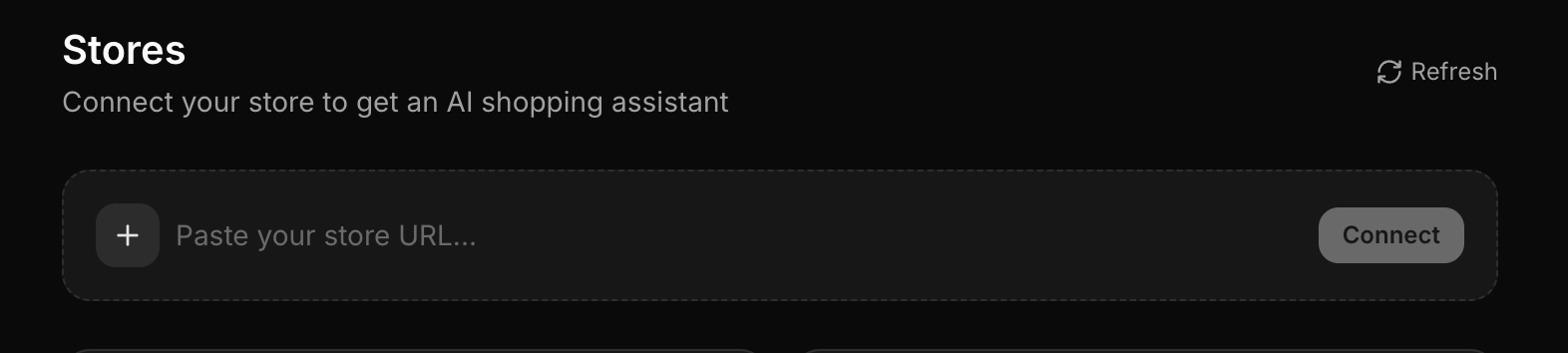
After signing up for Pipecat, head over to the Stores section in your dashboard.
- Click on Connect Store.
- Paste your store's URL.
- Provide a Name and Description for your store (this helps the AI understand your brand voice).
- Click Connect.
Step 2: Real-time Indexing
As soon as you connect your store, Pipecat's crawlers will automatically start indexing your entire product catalog.
This process might take a few minutes depending on the size of your store, but you can watch the progress in real-time directly on the dashboard! We extract product names, prices, descriptions, and variants so the AI knows exactly what you sell.
Step 3: Manage Products & Custom Instructions
Once the indexing is complete, navigate to the Products Tab inside your store's page.
Here, you can view all the products the AI has learned about. If you want the AI to highlight specific selling points, handle objections, or up-sell a certain product, you can add Custom Instructions to individual products!
[!TIP] Use custom instructions to tell the AI things like: "If they ask about sizing, mention that this runs small so they should order a size up."
Step 4: Configure Settings & Lead Capture
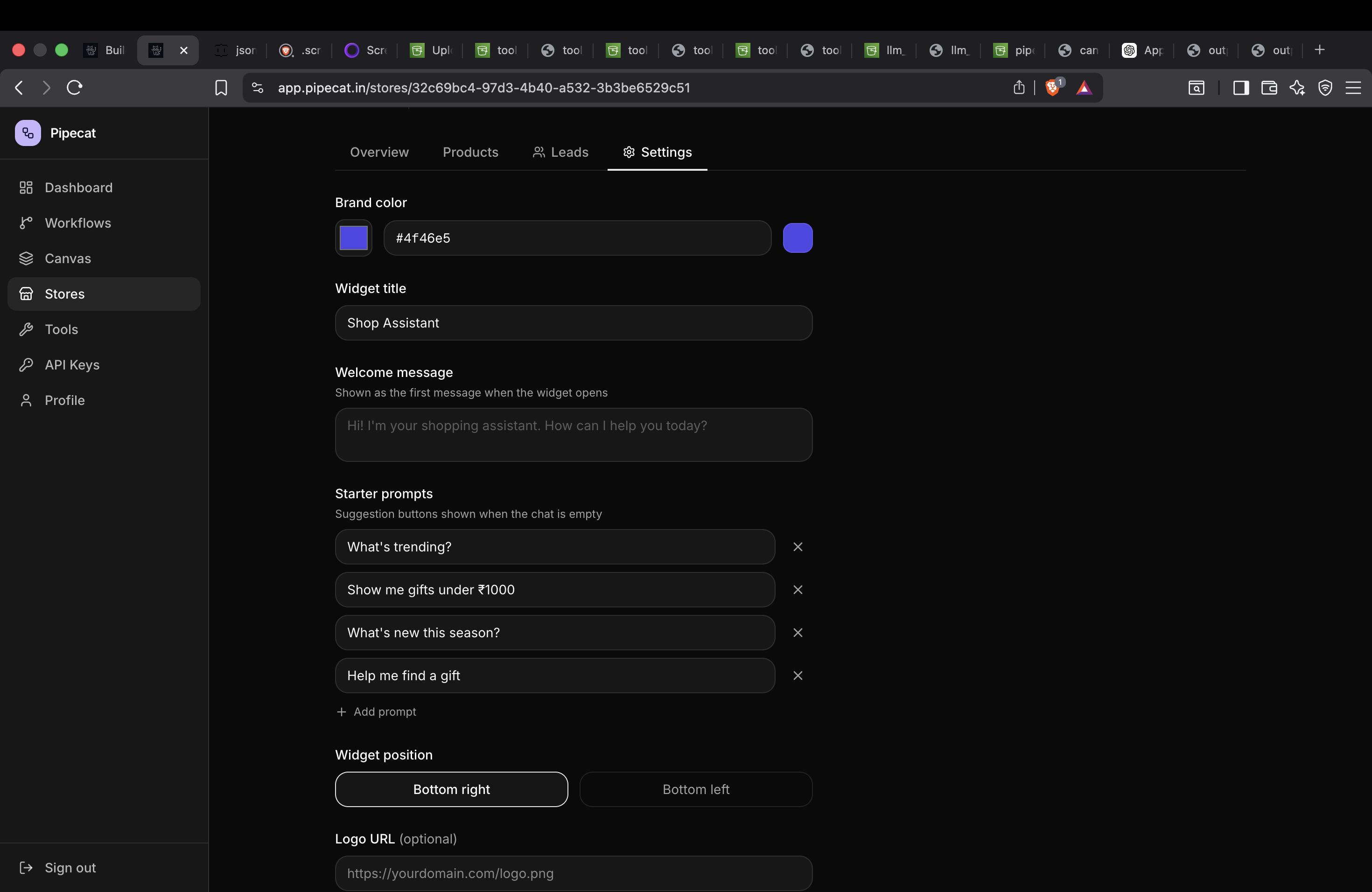
Head over to the Settings Tab. This is the control center for your widget.
- Collect Leads: You can turn on the option to automatically collect emails and phone numbers from visitors during their conversation.
- Customization: You can fully match the widget to your brand's theme.
To learn more about tweaking the appearance, check out our guide on Customizing Your AI Shopping Assistant.
Step 5: Embed the Widget
You're finally ready to go live!
Navigate to the Overview Tab, where you will find your store's unique embed code. It looks like this:
<script
  src="/embed.js"
  data-store-id="YOUR_STORE_ID"
  defer
></script>
Simply copy this snippet and paste it just before the closing </body> tag of your website's HTML (or inside your Shopify Theme's theme.liquid file).
This loads a floating chat bubble on your store. Clicking it opens the assistant — and clicking the ✕ inside collapses it back to the bubble. Voilà — your AI Shopping Assistant is live and ready to sell.
Next Tutorial
Continue learning with: